
SWIMPHONIC · USER GUIDE
Your workout.
From plan to pool.
Follow the quick start, then use the reference whenever you need a setting explained.
For the training editor at beta20261104.swimphonic.com · Updated 5 November 2026
1. Create your first workout
Build the steps, choose their timing, add guidance and export numbered MP3 files for your player.
- Open the training editor. Choose Examples for a ready-made workout, or New to start empty. Download a backup first if you want to keep the current workout.
- Name it. Click the Workout title field. Choose Units, Pool and Voice at the top.
- Add a warm-up. Drag a Section into the Workout Body. Double-click it, name it “Warm-up”, then Save block. Drag a Swim inside it. Set 100 m, Scheduled, and 120 target seconds per 100 m.
- Add guidance. On the Swim’s Audio tab, enable Speak introduction and Departure beep. Use the small ▶ buttons to hear it, then Save block.
- Add a main set. Drag a Repeat after the warm-up. Set Repetitions to 4, Recovery / departure to Fixed send-off interval, and the interval to 45 seconds. Put a 50 m Swim inside it. Set pace and expected time to 0 so it uses the send-off slot. Enable its Departure beep. On the Repeat’s MP3 tab, enable Start a new MP3 here to make the main set a separate restart file.
- Review and export. Resolve Review before export errors. Choose Restart tracks · ZIP and Export MP3 tracks. Extract the ZIP and transfer the numbered MP3s to your player in order.
Time fields use seconds: 45 = :45, 90 = 1:30, 120 = 2:00. Displayed recording times use minutes:seconds.
2. Find your way around
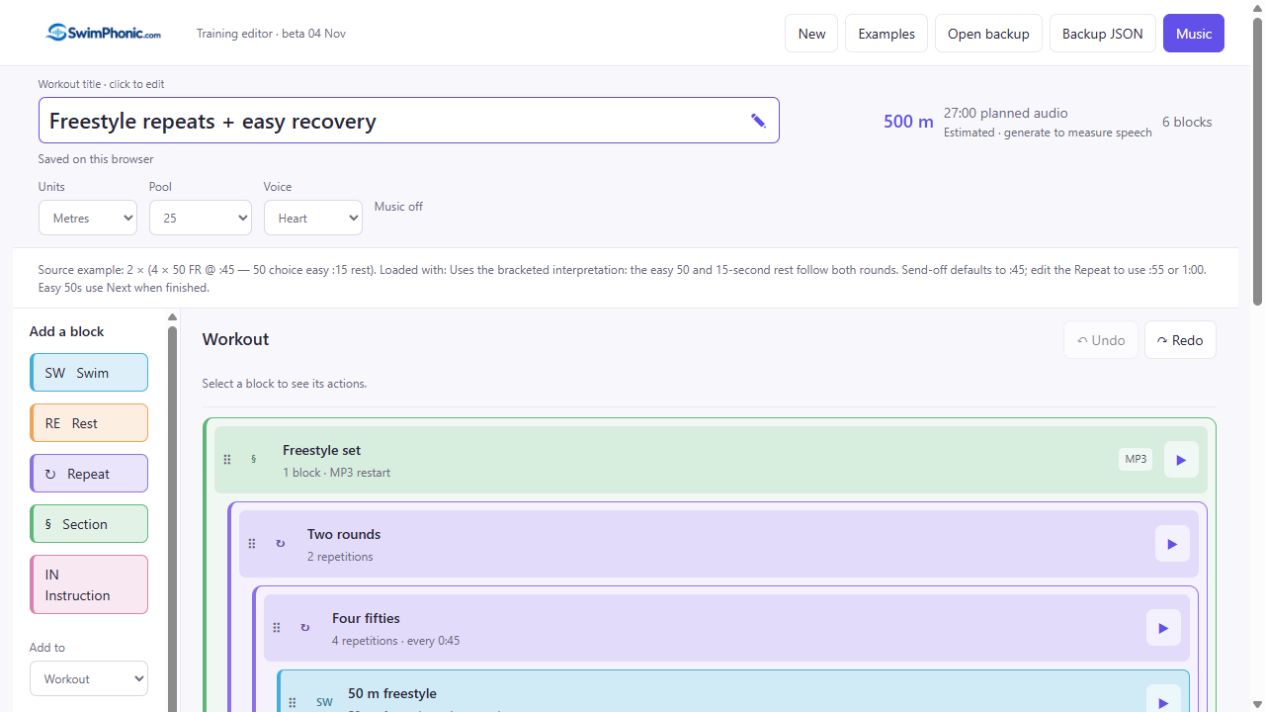
Choose or drag blocks
Top to bottom; indented blocks belong to their parent.
On scroll, the Page Header, Workout Header and Block Palette stay available. The title box compacts. Units, Pool, Voice, saved status and music summary return at the top. On small screens the palette sits above the workout.
Colour identifies type. The darker edge surrounds a middle-shade header; containers have a light area around their children. Disabled blocks and their children use grey.
3. Add, select and move blocks
- Click once to select a block. Double-click to open settings, or select then choose Edit.
- Add by click: choose a container in the palette’s Add to menu, then click a block type.
- Add by drag: drag a palette block onto a target. The destination overrides Add to. Its settings open after creation.
- Move: drag an existing block’s six-dot handle. Containers move with all children.
Placement demo
Illustration: drag Swim from the palette into the Section. No workout is changed.
| Field or control | What it does / how to use it |
|---|---|
| Top / bottom half of a header | Drop before / after that block at the same nesting level. After a container means outside its children. |
| Drop inside… / empty container | Append inside a Section or Repeat. Works in empty containers too. |
| Drop at end of workout | Append as the last top-level block, outside all containers. |
| Screen-edge scrolling / Escape | Hold a drag near the top/bottom edge to scroll. Escape, or release outside a valid target, cancels the drag. A container cannot move into itself/its descendants. |
| Edit / Listen | Open selected-block settings / preview all its audio, including contained steps and internal repetitions. |
| ↑ / ↓ | Move one place among siblings. Does not move in/out of a container. |
| Duplicate / Delete | Copy beside the selected block, including children / remove it and its children. Undo can restore a deletion. |
| Move block… | Append at workout root or inside an eligible container. Its own descendants are excluded. |
| Undo / Redo | Step back/forward through edits. History is page-session only; use JSON for a lasting backup. |
| ▶ on a block’s right edge | Preview its audio without opening settings. Appears when authored audio exists, including in descendants. |
Cancel in a newly created block’s settings discards dialog edits but leaves the default new block. Undo or Delete removes it.
4. Choose how a step advances
Scheduled
Advance at a planned recorded time. Use for timed/target-paced swims, send-offs and fixed rests.
100 m at 120 seconds per 100 m schedules two minutes swimming.
Swimmer-controlled
A separate MP3 holds a finite completion window. Press Next when finished.
For an easy 50, choose a generous window. Finish, then press Next to begin the following recovery track.
Send-off versus fixed rest
4 × 50 on :45: start every 45 seconds. A 35-second swim leaves about 10 seconds. 4 × 50 with :15 rest: add 15 seconds after the planned swim. The app cannot measure your actual finish.
Keep setup speech/preparation outside a tight send-off where possible. The complete repetition must fit; collisions are reported instead of silently moving departures.
5. Controls shared by block dialogs
| Field or control | What it does / how to use it |
|---|---|
| Block name | Short label, up to 80 characters. Helps identify blocks/restart files. Renaming alone does not rewrite a custom introduction. |
| Training / Audio / Music / MP3 | Task / speech and cues / music behaviour / restart and preparation settings. Switching tabs keeps your draft. Fields scroll inside the fixed dialog frame. |
| Disable block / Enable block | Exclude/include it in planned audio and distance. A disabled container disables descendants. Save block applies the change. Enable the parent first to edit a child disabled by its parent. |
| Save block | Validate and apply the draft, then close. Invalid entries show an error. |
| Cancel / × / Escape | Close without applying the draft. Selection remains. |
| Small ▶ beside a field | Preview related audio using draft settings without saving. Generated introductions also add previews beside relevant Training fields. A disabled play button means that audio is off or the block is disabled. |
| Stop / preview status / audio player | Stop cancels generation or pauses playback. Status shows progress/errors. The player can play/pause, seek and change listening volume; that volume does not edit exported settings. |
| Preview scope | Field/block previews omit long waits; rhythm/music samples are about ten seconds. Whole-block preview includes its first contextual occurrence, descendants and internal repetitions, not all occurrences in an outer Repeat. |
Some Audio switches appear on every type but only affect Swim/Rest as specified below. Use an Instruction child for a standalone cue in a container.
6. Swim block · Training
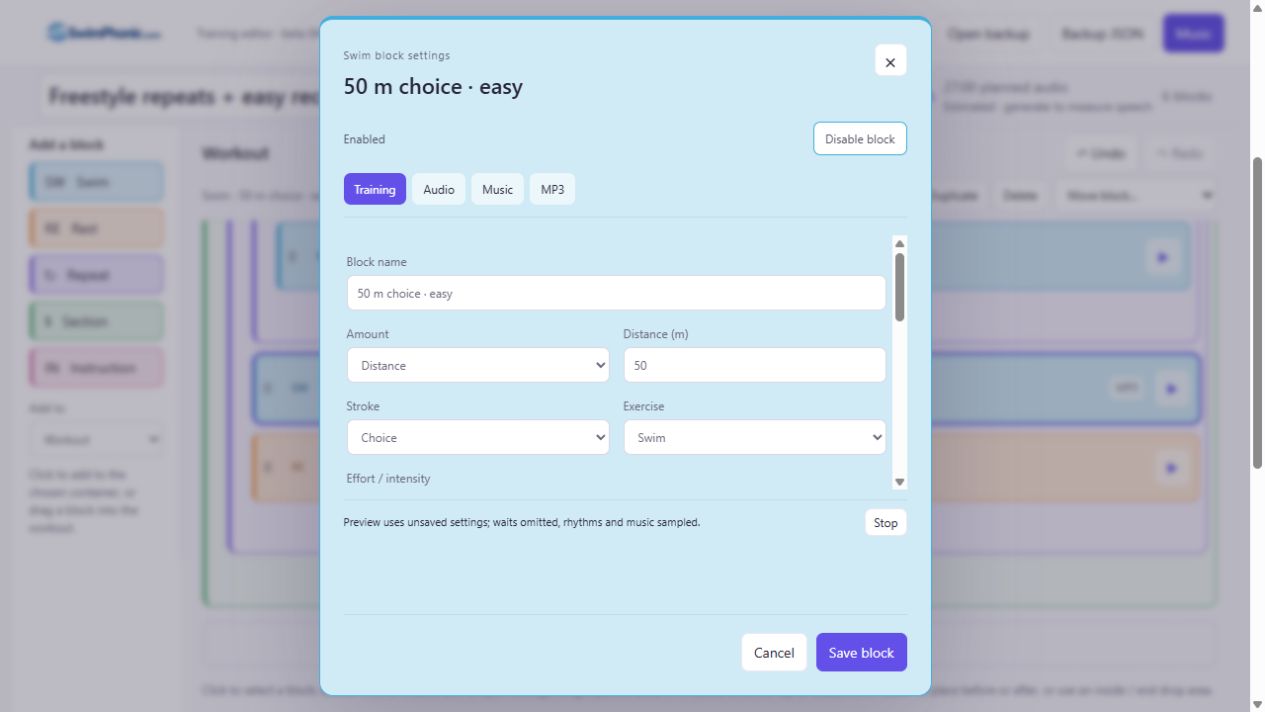
| Field or control | What it does / how to use it |
|---|---|
| Amount | Distance uses metres/yards. Duration uses seconds and forces Scheduled timing. |
| Distance (m / yd) | 0.01–20,000 in the selected units. Repeats multiply it in the distance total. |
| Swim duration (seconds) | Greater than 0, up to 7,200. The fixed active swimming time. |
| Stroke | Freestyle, Backstroke, Breaststroke, Butterfly, Individual medley or Choice. Describes the task. |
| Exercise | Swim, Kick, Pull, Drill or Scull. Describe your chosen drill in the instructions. |
| Effort / intensity | Free text, e.g. easy or build to fast (100 characters). Does not automatically alter numeric pace. |
| Timing behaviour | Distance only: Scheduled or Swimmer-controlled · Next when finished. |
| Target seconds per 100 m / yd | Scheduled distance: time = distance ÷ 100 × pace. 120 means 2:00 per 100. 0 = unspecified. |
| Expected total swim time (seconds) | Overrides pace. 0 = use pace. Both may be 0 only with a send-off Repeat supplying the timing. |
| Completion window after instruction (seconds) | Swimmer-controlled: 15–7,200; default 600. Follows introduction/preparation. Press Next early when finished. Warning is normally 30 seconds before the end; for windows below 30 seconds it starts at the window’s beginning. |
| Technique / drill instructions | Up to 1,000 characters. Included in generated introduction when Speak introduction is on and custom text is blank. |
| Equipment | Fins, Buoy, Paddles, Board, Snorkel. Recorded for reference/PDF. Not automatically spoken; add reminders to introduction text. |
| Continuous swim segments | Expand to describe one continuous Swim; no automatic rests between segments. |
| Repeat this segment pattern | 1–20. Example: 50 kick + 50 drill × 4 = 400. |
| Segment Distance / Instruction | Distance 0.01–20,000; instruction up to 500 characters. Sum of segment distances × pattern repeats must equal the Swim distance. Use Distance amount. |
| + Add segment / × Remove segment | Add a row (up to 20) / remove that row. Save block applies it. |
| Segment audio | Generated introduction describes the pattern. Segment labels do not automatically create spoken changes at walls. Use separate scheduled steps/cues if you need timed changes. |
7. Rest block · Training
| Field or control | What it does / how to use it |
|---|---|
| Timing behaviour | Scheduled rest: fixed recorded time. Rest until ready · Next to continue: separate finite-window MP3. |
| Rest duration (seconds) | Scheduled: greater than 0, up to 7,200. Without separate preparation, spoken rest instructions must fit within this duration. |
| Completion window (seconds) | Until-ready rest: 15–7,200. Warning and automatic advance work as on swimmer-controlled Swim. Choose a comfortably long window. |
| Audio / Music / MP3 | Shared controls below. Finish countdown is Scheduled only. Elapsed-time and repetition progress apply; distance and wall rhythm do not. |
Adds time, no distance. Enable Speak introduction to hear “15 seconds rest”; a name alone does not create speech.
8. Repeat block · Training
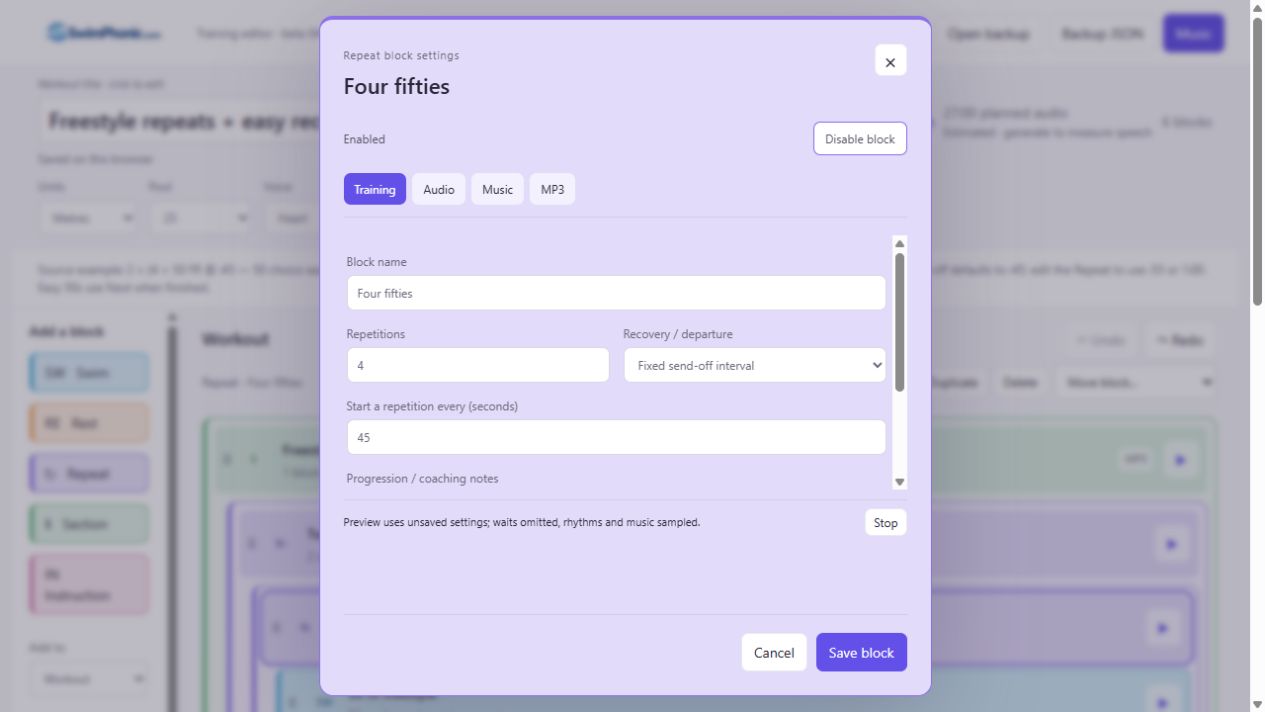
| Field or control | What it does / how to use it |
|---|---|
| Repetitions | Whole number 1–20. Includes all children in order and any nested Repeats. |
| Recovery / departure: Use contained steps | Run the children, then begin the next round. Add Rest children where needed. |
| Fixed rest after repetition | Add Rest (seconds) after the entire group of children. |
| Rest (seconds) | 0–7,200 of added recovery, separate from any Rest children. |
| Apply rest | Between repetitions only omits recovery after the final pass. After every repetition includes it. |
| Fixed send-off interval | Start-to-start timing for each complete pass. |
| Start a repetition every (seconds) | 1–7,200. Complete children/instructions/preparation must fit. A Swim with no pace/expected time uses the send-off slot; keep that case simple, usually one Swim per send-off Repeat. |
| Progression / coaching notes | Up to 500 characters, e.g. get faster each round. Included in a generated Repeat introduction when enabled. Does not automatically alter child paces/distances. |
| Other tabs | Repeat introduction, music, preparation and restart points are configurable. Put departure cues on Swim children. Progress/rhythm controls belong to Swim/Rest children. |
9. Section block · Training
| Field or control | What it does / how to use it |
|---|---|
| Block name | Name a group: Warm-up, Main set, Cool-down, etc. |
| Children | Run once, top to bottom. No extra distance, recovery or repetition by itself. Needs at least one enabled child to export. |
| Audio | Speak its name or custom introduction. Use Swim/Rest/Instruction children for individual cues. |
| Music | Continue, silence/pause for this group, or start a selected file. |
| MP3 | Sections start a new MP3 by default; optional. Preparation runs before the children. |
10. Instruction block · Training
| Field or control | What it does / how to use it |
|---|---|
| Text to speak | Up to 1,000 characters. Speaks directly; there is no separate Speak introduction switch. |
| Additional signal / announcement: None | Speak text, then any Silence after instruction. May leave text blank if a signal or positive silence duration is present. |
| High beep / Double beep / Low, low, high | Selected tone pattern follows the text. Low, low, high is a three-tone countdown. |
| Workout time elapsed | Speak the planned recording time at this point; replaces Text to speak. |
| Planned distance completed | Speak distance planned before this point, not measured swimming; replaces Text to speak. |
| Current repetition | Speak innermost current pass/total; outside a Repeat, 1 of 1. Replaces Text to speak. |
| Race-start practice | Generate the chosen practice procedure. Commands replace Text to speak. Not connected to a race timing system. |
| Procedure | Take your marks + signal: spoken command, hold, start signal. Forward start: three short whistles, a long whistle, preparation, command, hold, start signal. Backstroke start: short whistles, first long whistle, entry time, second long whistle, preparation, command, hold, signal. |
| Hold after spoken command (seconds) | 0–10 between command and signal. |
| Preparation before command (seconds) | 0–60 after the forward-start long whistle, or the backstroke second long whistle, before the spoken command. Not used by Take your marks + signal. |
| Water entry time (seconds) | 0–60 between the first and second long whistles in Backstroke start. Not used by Forward start or Take your marks + signal. |
| Silence after instruction / signal (seconds) | 0–7,200 added after the sequence. A deliberate gap, not an indefinite wait. |
| Other tabs | Audio volume/interruption, Music and MP3/preparation apply. Departure/Finish switches shown on Audio do not add extra Instruction cues; use its Training signal menu. |
11. Audio tab · introductions, signals and rhythm
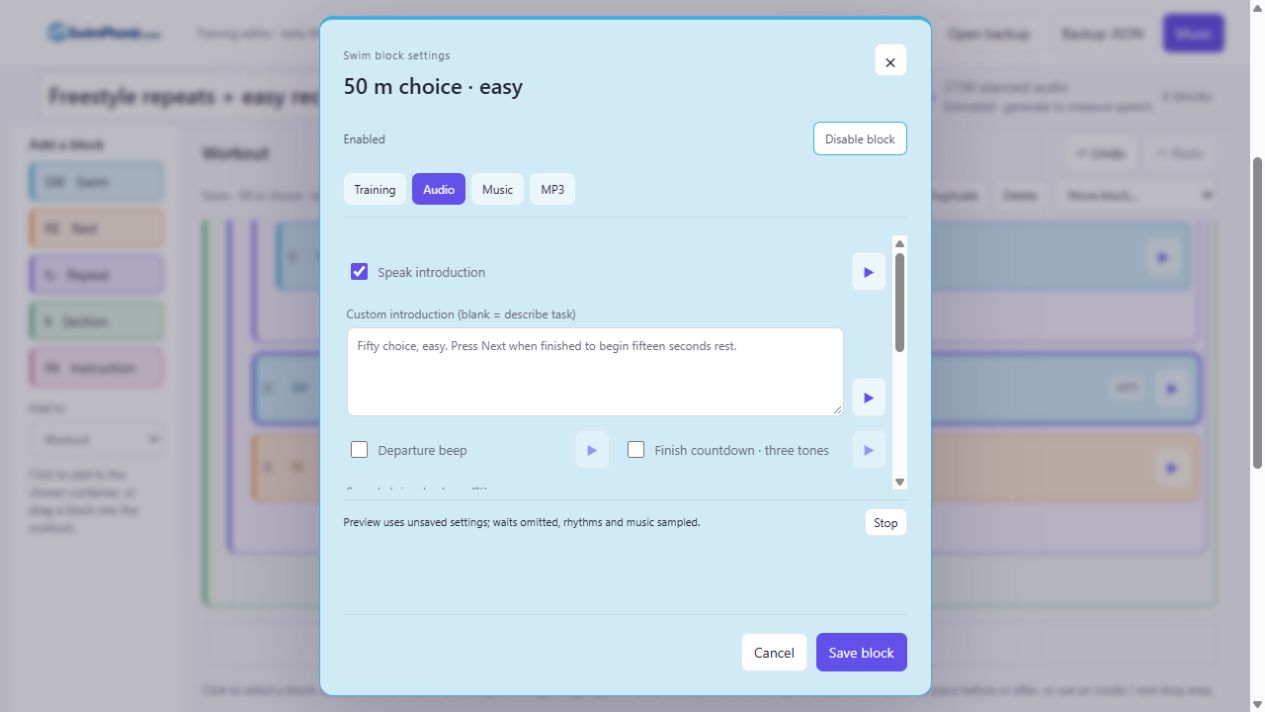
| Field or control | What it does / how to use it |
|---|---|
| Speak introduction | Swim, Rest, Repeat, Section: generate an introduction from supported task fields, or use custom wording. Off = no introduction. |
| Custom introduction (blank = describe task) | Up to 1,000 characters. Overrides generated text. Review it yourself when changing the task later. |
| Departure beep | Swim/Rest only: high beep at active swim/rest start, after separate introduction/preparation. Does not add a container-level cue. |
| Finish countdown · three tones | Scheduled Swim/Rest only: low, low, high near the end; very short steps use one tone. Swimmer-controlled steps use a completion-window warning instead. |
| Speech / signal volume (%) | 0–100 for this block’s guidance/cues. Does not set background music volume. |
| Progress announcements | Swim/Rest: Off, Elapsed seconds in this step, Current repetition. Swim also offers Planned pool lengths completed and Planned distance completed. |
| Announce every N seconds / lengths / distance units | 1–2,000, in the units of the chosen progress mode. Lengths + 2 means every two planned lengths. Current repetition announces at the beginning and does not use this interval. |
| Include final distance / length announcement | Add the last distance/length message. Does not add a final time/repetition message. Leave space for speech at the next boundary. |
| Distance / length requirements | Scheduled distance Swim plus explicit pace/expected time. Length progress also requires a pool and whole lengths. A send-off alone is not a target swimming pace. |
| Rhythm | Swim only: Off, Stroke tempo or Planned wall pace. Wall pace needs Scheduled distance, a pool and explicit pace/expected time. |
| Seconds per beat | Stroke tempo: 0.20–6.00. 1 second gives 60 cues/minute. Sets cue spacing; cannot sense strokes. |
| One beat means | Each hand entry or Full stroke cycle. Labels your convention; does not automatically double/halve the entered beat spacing. |
| Signal tone | Rhythm pitch: Low 600 Hz, Medium 900 Hz, High 1200 Hz. |
| Rhythm timing | Planned beat/wall stream. Foreground speech/signals can delay queued beats; review warnings. The full rhythm step is treated as a music-interruption window. |
Advanced audio / music interruption · all fields
| Field or control | What it does / how to use it |
|---|---|
| During spoken instructions and signals | Lower music · keep playing reduces level while source time advances. Mute · keep playing silences while source time advances. Pause and resume holds source position. |
| Lowered level (% of current music volume) | 0–100. Main music 70% × lowered level 25% = 17.5% during a lowered window. |
| Fade out / Fade back in (seconds) | 0–30 for entering/leaving interruptions. Different from the main Music fade setting. |
| Replay before interruption (seconds) | 0–120. With Pause and resume, rewind this much of the music when resuming, limited by file start. Does not replay the instruction. |
For continuous music choose Lower music. For clear guidance choose Mute or Pause. Check the mix before exporting a full workout.
12. Music tab · per-block behaviour
| Field or control | What it does / how to use it |
|---|---|
| Follow workout settings / continue | Use the ongoing stream without restarting. A preceding Start selected file may already have changed that stream. |
| Silence · keep source position advancing | Silence for this block while music time advances. Resume from the later position afterwards. |
| Pause source during this block | Hold source position and silence for the block. Resume afterwards. |
| Start selected file | Start a particular imported MP3 at a chosen offset. Can start music even when the global Background music on toggle is off. |
| Imported MP3 | Choose from files imported in the main Music dialog. Missing audio needs Relink. |
| Start at file position (seconds) | 0–86,400 in the field; choose an offset within the actual file. 60 means one minute. |
| When repeated | Start only on first pass: only the first pass through enclosing repeats. Restart on every pass: return to the chosen offset each time. |
| After the block | Silence/pause overrides end. Starting a file changes the ongoing stream for subsequent blocks. Music normally continues across ordinary blocks/repetitions. |
13. MP3 tab · restart and preparation
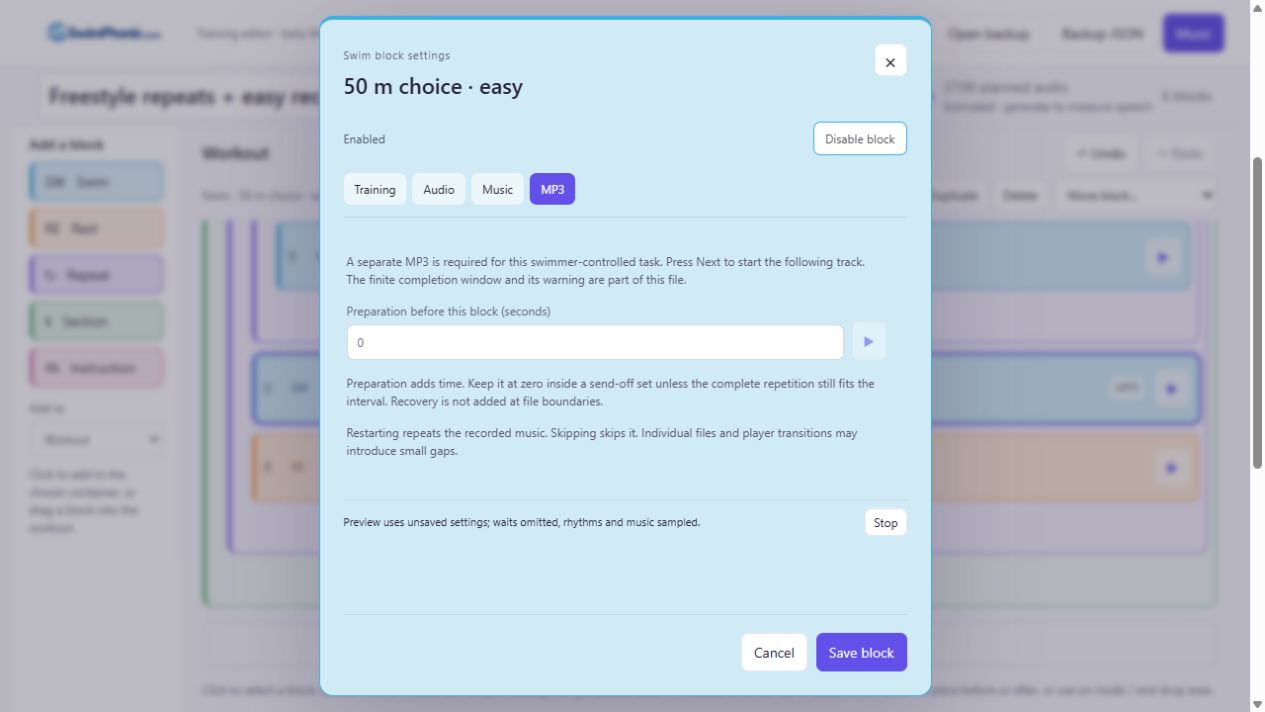
| Field or control | What it does / how to use it |
|---|---|
| Start a new MP3 here | Begin an export file at this block. Sections default on, others off. A restart in a Repeat can create a file on each pass. Coincident boundaries do not create useful empty files. |
| Required separate MP3 message | Swimmer-controlled Swim/Rest automatically starts a file and creates a boundary afterwards. Cannot switch this off. |
| Preparation before this block (seconds) | 0–60 extra time, after separate introduction and before active body. 0 adds none. Non-zero needs at least 0.16 seconds for a signal; a full preparation countdown needs 2.16 seconds. |
| Preparation inside a send-off | Adds time each pass. Prefer setup on a containing Section/Repeat before the set. All in-round preparation must fit the send-off. |
| Recovery at boundaries | No rest is automatically inserted at file boundaries. Add a Rest block or Repeat recovery. |
14. Understand MP3 restart points
A restart point begins a separate MP3 file. It lets you recover using standard music-player controls.
Try the player logic
A silent illustration, not your workout or an audio preview. Press Next to leave the completion window early.
001 · Warm-up — scheduled playback
Each numbered file has a known start. A file is ordinary recorded audio.
| Field or control | What it does / how to use it |
|---|---|
| Miss a send-off / get interrupted | Pause if needed. Use your player’s restart/previous controls to return to a known file start. Previous behaviour varies by player; check whether it restarts this file or selects the previous one. |
| Finish a swimmer-controlled task early | Press Next once. The following file starts now. If it begins with Rest, its full recorded rest begins then. Unused window audio is skipped. |
| Do not press Next | The finite file ends and sequential playback advances. Warning is normally 30 seconds before the window ends; for shorter windows it is scheduled at the start. |
| Last task is swimmer-controlled | An automatic closing “Workout complete” track provides the next file. |
| Restart / skip | Also restart/skip recorded instructions and mixed music. MP3s contain a finished mix; the player does not rebuild editor settings. |
| Repeats and file counts | Restart points expand for actual passes. Names can include 1/2, 2/2, etc. One authored block may create multiple files. |
| Planned time versus actual session | Planned duration includes full completion windows, speech, preparation and recovery. Pressing Next early shortens the session. Planned distance is not detected distance. |
| How many restart points? | Use important set starts for easier recovery. More short files create more player transitions; small gaps can occur. Check your player. |
| Continuous MP3 | Allows seeking but has no per-block Next targets. Disabled while any enabled swimmer-controlled step exists. |
Why does the first example create five files?
“Freestyle repeats + easy recovery” has two rounds of four 50s, an easy 50 and 15 seconds rest:
- 001 · Freestyle set: intro/preparation and the first four 50s.
- 002 · Easy 50 · 1/2: first easy swim + window. Press Next when finished.
- 003 · After easy 50: 15 seconds rest, then the second four 50s.
- 004 · Easy 50 · 2/2: second easy swim + window. Press Next when finished.
- 005 · After easy 50: final 15 seconds rest.
Adding restart points or changing blocks changes this list. Select a track card to inspect its planned recording range.
15. Import and manage music
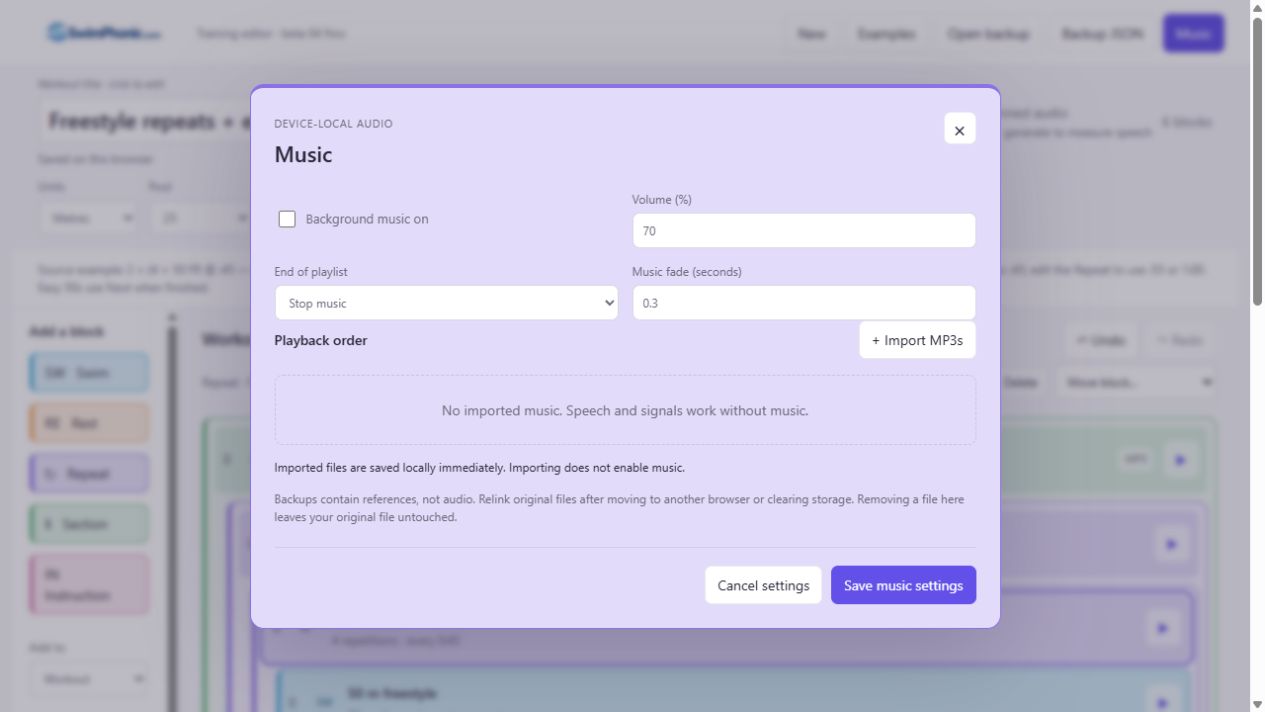
- Choose Music, then + Import MP3s. Select one or more local MP3s.
- Arrange playback order with ↑ / ↓. Preview a file to check it.
- Enable Background music on, set volume/ending, then Save music settings.
- Use a block’s Music tab for a particular song, offset or silence/pause override.
| Field or control | What it does / how to use it |
|---|---|
| Background music on | Automatically start the imported playlist. Off still allows speech/signals and explicit block Start selected file actions. |
| Volume (%) | 0–100 for music; default 70%. Independent of speech/signal volume. |
| End of playlist | Stop music at playlist end, or Repeat playlist for remaining workout time. |
| Music fade (seconds) | 0–5 for music transitions. Interruption fades are set separately on each block. |
| + Import MP3s | Import local audio, up to 100 references per workout. Files are stored in this browser where available. Imports/file-list changes apply immediately, even if you Cancel settings later. |
| File name / duration / availability | Playback order, scanned duration, and Available on this device, Missing, or Available this session only. |
| ↑ / ↓ beside a file | Reorder the playlist. Does not alter original MP3 files. |
| Preview / music player | Play the original file, not the workout mix. Player can pause, seek and change listening volume. |
| Relink | Choose the original missing MP3. Size and duration must match. Checks do not prove byte-for-byte identity; keep the originals. |
| Remove | Confirm removal of the imported copy/reference; original computer file remains. If a block explicitly selects it, change that setting first. Old backups using a removed copy need Relink. |
| Save music settings | Apply global toggle, volume, ending and fade, then close. |
| Cancel settings / × / Escape | Discard unsaved global settings. Already imported, reordered, relinked or removed files are not rolled back. |
| Music status | Import progress, storage fallback, relink errors and removal restrictions. |
16. Export and take it to the pool
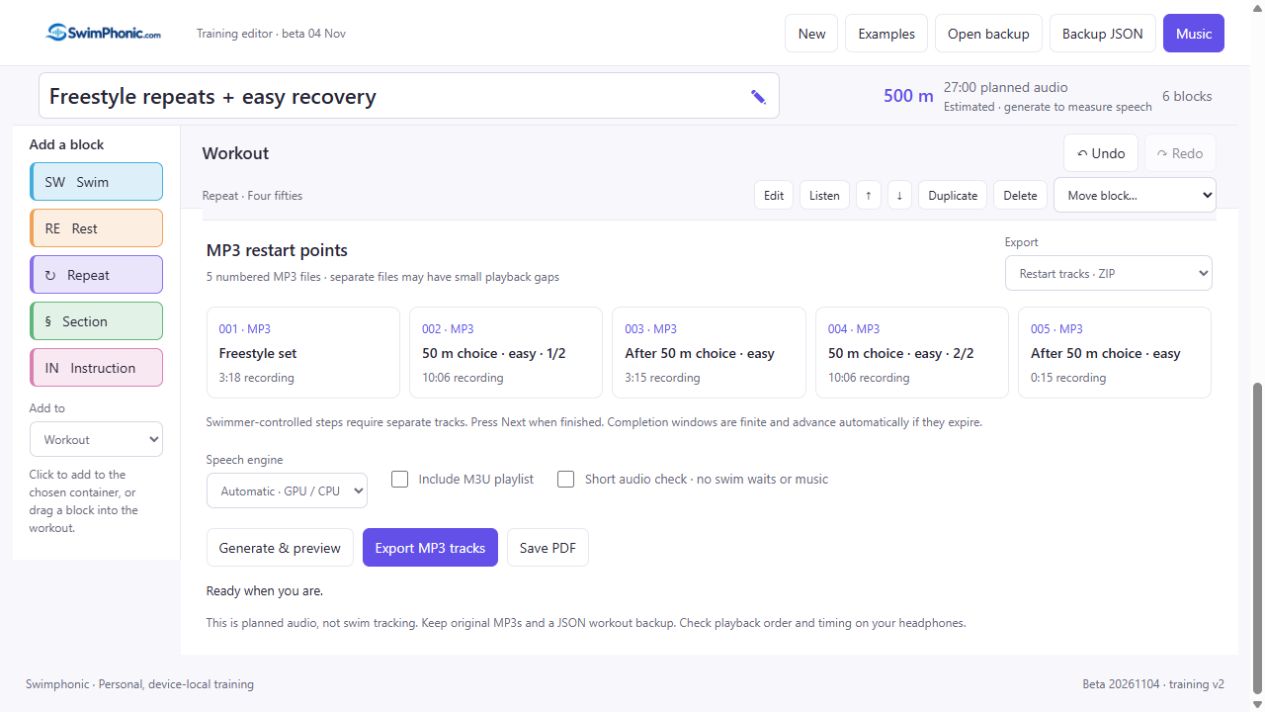
- Review: resolve Review before export errors. Click block-linked messages to open settings.
- Choose: Restart tracks · ZIP. Include M3U playlist if your player supports it.
- Check: use field/block previews, or Short audio check and Generate & preview. Turn Short audio check off before a full export.
- Generate: Export MP3 tracks. Keep the page open while speech is loaded/measured, audio is mixed and MP3s are encoded.
- Download: download starts when ready. Use the Download link if needed. Extract the ZIP to a folder.
- Transfer: copy numbered MP3s using your player’s transfer method. Preserve numbering, verify order and use M3U only if supported.
- Play: sequential mode, shuffle/repeat-one off. Press Next after swimmer-controlled tasks. Pause/restart when interrupted.
| Field or control | What it does / how to use it |
|---|---|
| Restart-point cards | Number, name and recording length. Select for planned start/end range and restart explanation. Cards inspect, not play, the track. |
| Export: Restart tracks · ZIP | Numbered MP3s, README.txt and optional playlist.m3u. ZIP filename uses workout title + -tracks.zip. Extract before transferring. |
| Export: One continuous MP3 | One mixed recording, when all enabled steps are Scheduled. Restart markers are not separate player tracks in this output. |
| Speech engine: Automatic · GPU / CPU | Use available acceleration with CPU fallback. Remembered in this browser. |
| Speech engine: CPU only | Try for GPU/backend issues. May be slower. |
| Include M3U playlist | Only full restart-track ZIP export. Player support varies; numbered MP3s are included regardless. |
| Short audio check · no swim waits or music | Compact cue check with full waits/music omitted. Not a pool-ready workout. Overrides full-track export while checked. |
| Generate & preview | Generate and play in the browser. Without Short audio check this is the full mixed timeline in one playback file, not separate Next targets. |
| Export MP3 tracks / Export MP3 / Export audio check | Label follows output settings; generate and trigger that download. Short check filename ends -audio-check.mp3. |
| Cancel during generation | Cancel audio work; retain the workout. Most editing is disabled while generating. |
| Retry | After failure, repeats the requested generation action. Fix reported issues first. |
| Download link | Download the ready ZIP/MP3 again. Edits clear the old result; regenerate after changes. |
| Browser audio player | Play/pause, seek and change listening volume. Browser controls vary. Listening volume does not edit export settings. |
| Status / generation metrics | Model loading, speech generation/cache, backend, encoding progress and timings. First speech generation may download substantial model assets; allow it to finish. |
| Estimated / Measured audio timing | Recording estimates become measured as speech is generated. Measured means speech duration, not actual swimming. Recheck after edits. |
| Save PDF | A4 reference: tasks, coaching/timing notes and restart list. Disabled blocks are labelled. Not an editable backup. Uses title + local timestamp like JSON. |
Example ZIP entries: 001-Freestyle set.mp3, 002-50 m choice easy.mp3, README.txt and optional playlist.m3u. Names follow your actual blocks and pass labels.
17. Page controls, defaults and backups
| Field or control | What it does / how to use it |
|---|---|
| Logo | Returns to the editor’s own base address. |
| New | Opens themed prompt. Download backup & start new triggers JSON then opens a blank workout; check download completion. Start without backup replaces directly. Cancel/×/Escape leave it unchanged. |
| Examples / example chooser | Choose one of three samples, read notation/assumptions, then Load example. Replaces current workout; Undo can restore during this page session. Cancel/×/Escape close. |
| Open backup | Select supported JSON and confirm replacement. Accepts training v2 and original Blocks v1. Music may need Relink. Review import notices/errors. |
| Backup JSON | Editable workout/settings backup, without MP3 data. Local timestamp in filename: Freestyle repeats + easy recovery - 2026-11-04 Wed 19-11.json. PDF uses the same pattern with .pdf. |
| Workout title / pencil | Click and type, up to 80 characters. Pencil marks an editable field, not a separate button. Title applies when you leave the field. |
| Saved on this browser | Autosave is device/browser-local, not an account or sync. Session-only messages mean saving failed: download JSON before leaving. |
| Units | Metres / Yards. Changes unit labels/interpretation; does not convert existing numeric distances. Review all values after switching. |
| Pool | 25, 50 or Open water, in selected units. Pool-length/wall cues require a pool, not Open water. |
| Voice | Heart, Michael, Emma, George. Regenerate after changing. |
| Distance / planned audio / block count | Enabled distance swims × repetitions; full recording duration; authored blocks including nested/disabled blocks. Duration-only swims do not infer distance. Authored count is not expanded repetitions. |
| Music summary | Music off, or file count + global volume. Open Music to edit. Hidden while scrolling. |
| Source example note | Original notation and assumptions; context for the loaded sample, not an automatically rewritten account of later edits. |
| Review before export / toast / form errors | Invalid entries, collisions, rhythm warnings, missing files or storage feedback. Click block-linked review messages to edit. Read persistent status text if a toast disappears. |
Selectable examples
- Freestyle repeats + easy recovery · 500 m: two rounds of four 50s on :45, 50 easy and 15 seconds rest. Easy swims use Next. Edit send-off to :55/1:00 if wanted.
- Progressive 100s · 400 m: four 100s on 1:50, getting faster every 25 within each 100. Choice stroke; no numeric segment paces invented. Edit send-off to 2:00 if wanted.
- Alternating kick / drill · 400 m: continuous 400, repeating 50 kick / 50 drill four times without rests. Next when finished; closing track follows.
18. Imported original Blocks workouts
| Field or control | What it does / how to use it |
|---|---|
| Import notices | Activities, Loops and Sections map into training blocks. Other original audio/attachments can be retained. Review playback; not every older setting has a current editor equivalent. |
| Spoken text (when applicable) | Edit retained original speech text. For other original types, this field may not change audio. |
| Original allocated seconds | Edit timing where the original block has a seconds field. Does not expose every old advanced setting. |
| Retained original attached audio | Expand Audio-tab list for attachment name, original type and offset. |
| Remove beside retained audio | Remove from the draft. Save block applies; Cancel discards. Keep original JSON to recover old settings. |
This guide describes the five current block types. Reconfigure legacy features with current blocks where necessary before exporting.
19. Common fixes and practical limits
| Field or control | What it does / how to use it |
|---|---|
| Unknown swim time | Choose swimmer-controlled Distance, a generous completion window and Next when finished. Scheduled distance needs pace/expected time or a send-off context. |
| Repetition exceeds send-off | Increase interval, shorten speech, remove unnecessary preparation or simplify children. Put setup before the fixed set. Avoid extra Rest if send-off already provides recovery. |
| Audio overlaps / crosses restart boundary | Shorten/disable speech or progress cues, add space, or move restart. Speech and a beep cannot share the same foreground instant. Regenerate to check measured timing. |
| Length/wall cue rejected | Choose Scheduled distance, explicit pace/expected time and a pool. Length progress requires whole lengths. |
| Segment total wrong | Sum distances × pattern repeats must equal total Swim distance. |
| Missing MP3 | Music → Relink original. Different browsers/beta addresses do not share stored music. |
| No audio | Check enabled parent/block, relevant audio switches and volume. New blocks may be silent until audio is enabled. Use Play if the browser blocks autoplay. |
| Generation slow or failed | Read status. First speech-model loading takes time. Try CPU only for GPU issues; Retry after fixing errors. Cancel preserves workout. Keep page open and sufficient device memory/storage available. |
| Wrong next file | Extract ZIP, preserve numbers, disable shuffle/repeat-one and verify the player’s actual order. Use supported folder/playlist mode. |
| Limits | 100 authored blocks; eight nesting levels; 20 repetitions per Repeat; 20 segment rows and 20 pattern repetitions; 100 MP3 references; 2,000 expanded steps. Recording must fit two hours, including completion windows. |
| What to keep | JSON = editable backup. PDF = reading copy. MP3s = finished audio. Keep original music files too. Autosave alone is not portable storage. |
Ready to try? Open the editor and load an example.